On this page
- What is a digital workspace?
- Digital workspace vs digital workplace vs intranet
- The 6 parts of a digital workspace
- 1. Identity and access
- 2. Communication
- 3. File storage and content
- 4. Business apps
- 5. Security
- 6. Device management
- What a good digital workspace gives you
- Where digital workspaces fail
- The 3 stages of a digital workspace
- Digital workspace readiness checklist
- Example: a digital workspace for a 20-person remote team
- Frequently asked questions
- What is a digital workspace in simple terms?
- What is the difference between a digital workspace and a digital workplace?
- Is Microsoft 365 a digital workspace?
- Is an intranet the same as a digital workspace?
- What does a small business need to start a digital workspace?
Quick answer: A digital workspace is the single, secure place where your team reaches everything it needs to work: apps, files, messages, and meetings, from any device, with one sign-in. It is not one product you buy off a shelf. It is the joined-up setup behind the products.
Three terms cause most of the confusion here: digital workspace, digital workplace, and intranet. Vendors use them loosely, sometimes for the same product. This guide separates the three, lists the parts a digital workspace is made of, and shows what a real one looks like for a small remote team.
What is a digital workspace?
Omnissa defines a digital workspace as “a secure, user-centric platform that unifies applications, data, and collaboration tools so people can work from any device, location, or network”. Citrix uses a similar idea: an integrated technology framework for delivering and managing applications, data, and desktops, giving users one unified and secure experience.
In plain words: a digital workspace is your team’s front door to work. Behind the door sit the email, chat, files, and business apps. The person walking in signs in once, and everything they are allowed to use is there, on a laptop at home, a phone on a train, or a desktop in the office.
Two points matter. First, the workspace is about the person’s view, not the server room. What counts is that work feels like one place, even when ten tools sit behind it. Second, you do not have to buy a big enterprise platform to have one. Large companies buy platforms such as Citrix Workspace. A small company can build the same pattern from one main suite plus a few connected tools, as the example near the end shows.
Digital workspace vs digital workplace vs intranet
These three terms overlap, and honest definitions help more than vendor claims.
The digital workplace is the biggest of the three: the whole digital environment where work happens, plus the strategy behind it. Paul Miller set out the idea in his 2012 book The Digital Workplace, calling it “the virtual, digital equivalent of the physical workspace” (definition retold by Interact Software). Gartner treats the digital workplace as a business strategy that promotes employee agility and engagement through a more consumer-like computing environment. Strategy, habits, and culture sit inside this term. Software alone does not cover it.
The digital workspace is the employee-facing hub inside that wider workplace. HCLTech puts the split plainly: a workspace is the user-facing hub where applications, files, and notifications come together, while the workplace also covers the infrastructure, support processes, and policies behind it.
An intranet is one part of both: the company’s internal website, home of news, policies, documents, and people pages. MangoApps describes an intranet as a content and communication destination, and one surface inside a digital workplace. Unily makes the same point from the other side: an intranet can be part of your digital workplace, but your digital workplace is not part of your intranet.
| Term | What it is | Covers | Quick test |
|---|---|---|---|
| Digital workspace | The front door each person uses | Apps, files, messages, and meetings behind one sign-in | Can a new starter reach everything from one place? |
| Digital workplace | The whole working environment | The workspace, plus infrastructure, policies, support, and work habits | Does it include how people work, not just what they open? |
| Intranet | The internal website | Company news, policies, documents, people pages | Is it a site you read, rather than where work gets done? |
The 6 parts of a digital workspace
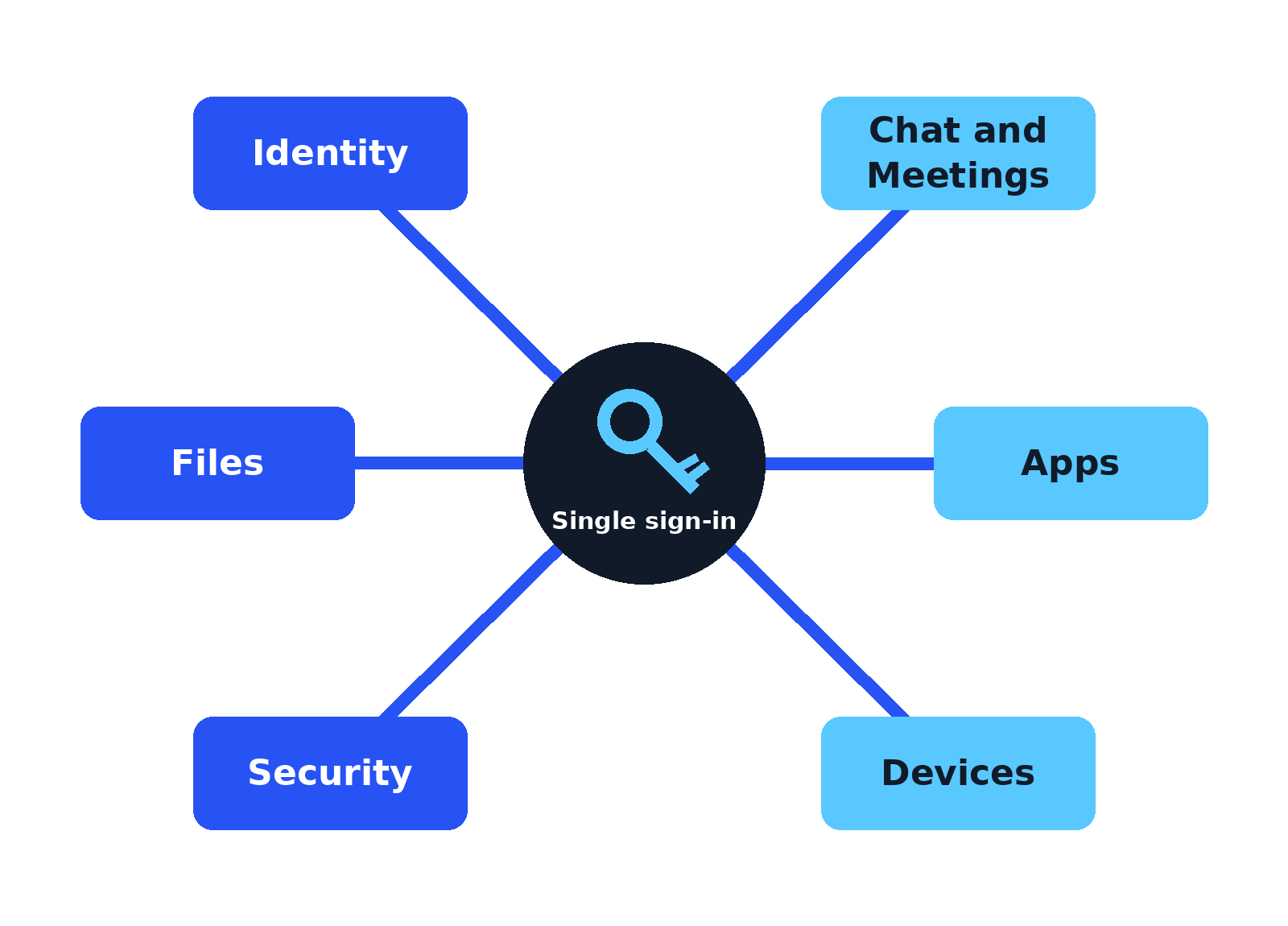
Vendors slice the parts differently, but the same six blocks keep appearing. Omnissa lists identity and access, device management, application delivery, security, and collaboration among its core building blocks. Here they are in plain words.
1. Identity and access
One account per person, one sign-in for everything (single sign-on), and a second check such as a phone prompt (multi-factor authentication). This block is the door lock. Get it right and joining is fast and leaving is safe: switch off one account and access ends everywhere.
2. Communication
Email, team chat, and video meetings that work as one flow, so a conversation can move from a message to a call without switching worlds. Omnissa groups email, chat, meetings, and file sharing under collaboration and content for the same reason: people should not have to hunt across tools to talk.
3. File storage and content
One company home for files, with sharing, search, and version history. If the real copy of a document sits on someone’s laptop or personal drive, this block is missing, whatever the sales page said.
4. Business apps
The tools the work runs on: the CRM, the project board, the accounts package, the support inbox. In a digital workspace they sit behind the same front door and the same sign-in, instead of being ten bookmarks and ten passwords.
5. Security
The rules that travel with the data: encryption, access controls based on the person and the device, and basic data loss protection, so a file cannot quietly leave the company. Omnissa ties this to zero trust ideas, which in plain terms means: check who is asking, every time, and grant only the access the job needs.
6. Device management
Laptops and phones are enrolled, kept up to date, and can be wiped if lost or stolen. This block (often called unified endpoint management) is what lets a company say yes to people working from home or using their own phone, without losing control of company data.
What a good digital workspace gives you
- Work from anywhere, on any device. The same front door opens at home, in the office, or on a phone, so location stops deciding what a person can get done.
- Fewer passwords, faster starts. One sign-in replaces a sticky note of logins, and new tools stop meaning new passwords to forget.
- Cleaner joining and leaving. A starter gets one account and the right apps on day one. A leaver loses access in one move, not in ten forgotten tools.
- One place to secure. When apps and files sit behind one identity, security rules apply everywhere at once instead of tool by tool.
Where digital workspaces fail
- Buying a platform before fixing identity. A shiny hub on top of five separate logins is still five logins. Identity comes first, always.
- Tool sprawl with no joining up. Three chat apps, two file stores, and a project tool nobody opens is not a workspace. It is a pile.
- No named owner. If nobody owns the setup, nobody removes dead apps, fixes access, or keeps the front door tidy.
- Files still living on personal drives. The workspace only works if the real work moves into it. Old habits beat new software when nobody checks.
- Copying an enterprise setup at small scale. Virtual desktops and heavy platforms solve big-company problems. A 20-person team usually needs a suite, a sign-in, and discipline, not a data centre project.
The 3 stages of a digital workspace
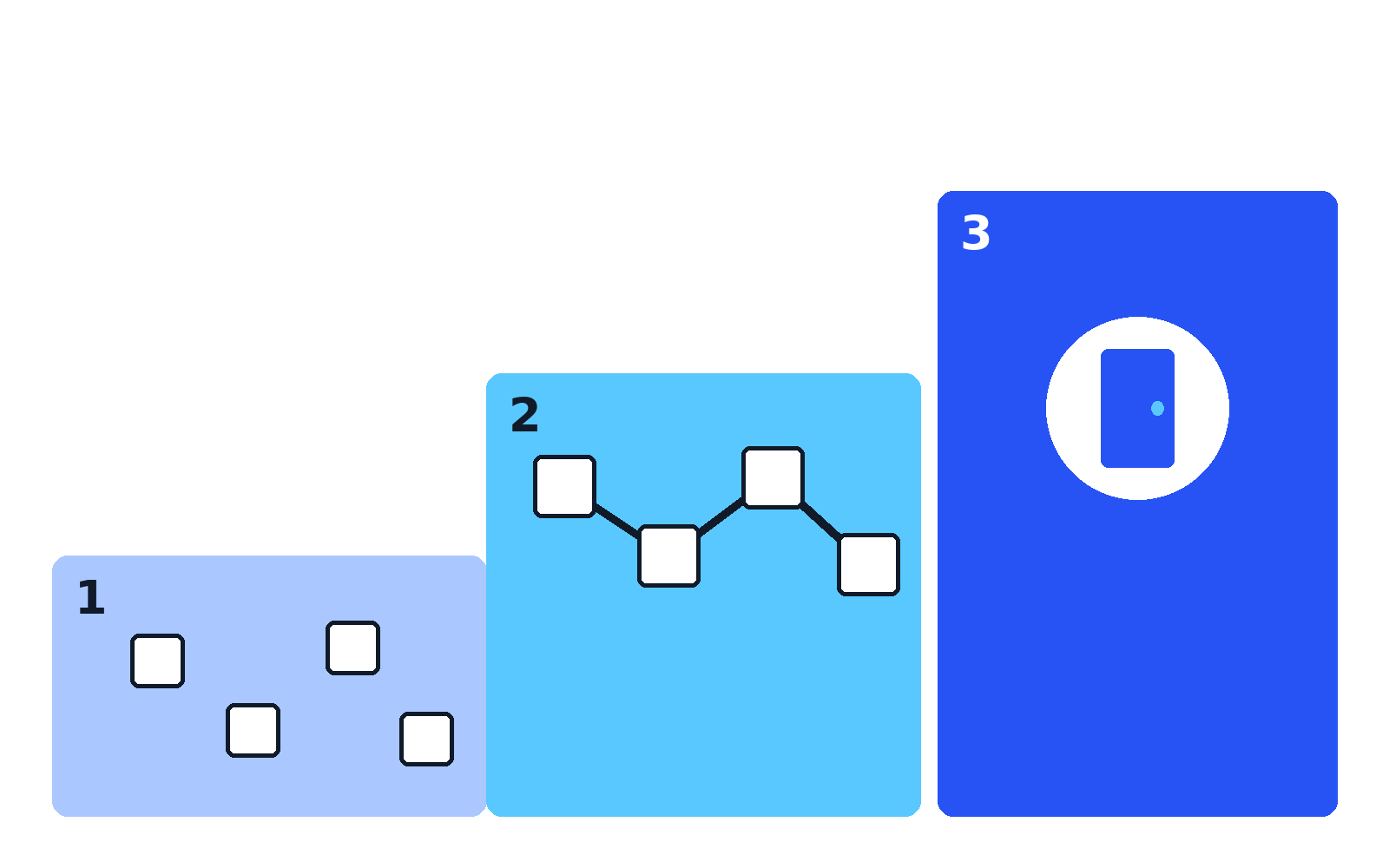
Most teams are not starting from zero. They are sitting at one of these three stages. Find yours, then take the one next move that matters.
| Stage | What it looks like | Signs you are here | Your next move |
|---|---|---|---|
| 1. Scattered tools | Apps bought one by one, each with its own login and its own home for files | Starters get a list of links and passwords; the same file lives in three places; nobody can say which tools the company pays for | Pick one suite as home base, move email and files into it, and turn on single sign-on |
| 2. Connected stack | One suite at the centre, most tools behind the same sign-in, a few side tools left over | Main apps open with one account; files mostly live in one system; a couple of teams still run their own side tools | Connect or replace the stragglers, enrol devices, and build one front door page |
| 3. Unified workspace | One front door for the whole day, everything behind one identity | Signing in once opens the day’s work; a leaver is switched off in minutes; search finds files across tools | Stay tidy: review apps and seats twice a year, remove what nobody uses |
Digital workspace readiness checklist
Score your team honestly. Each “no” is a job, roughly in the order listed.
- ☐ One account per person, with multi-factor authentication switched on
- ☐ One suite chosen as home base for email, files, and chat
- ☐ Every main app reachable with that same sign-in (single sign-on)
- ☐ Files live in the company system, not on personal drives or desktops
- ☐ One front door page with links to every tool, key policies, and who does what
- ☐ Company news and policies in one place (your intranet page)
- ☐ Laptops and phones listed, with screen lock and encryption switched on
- ☐ A named owner for the whole setup, a person rather than “IT” in general
- ☐ Joiner and leaver steps written down, so accounts open on day one and close the day someone leaves
- ☐ A short monthly tidy booked in: remove unused apps, seats, and shared links
Example: a digital workspace for a 20-person remote team
Theory is cheap, so here is one concrete setup. It uses no prices and no exotic tools, just real suites at category level.
Home base and identity. The team picks one suite and lives in it. phoenixNAP names Microsoft 365 as a digital workspace example, since it bundles the Office apps with Microsoft Teams for chat and meetings and OneDrive for files. Google Workspace plays the same role with Gmail, Drive, Chat, and Meet. Either way, the suite account is the person’s identity, with multi-factor authentication on for all 20 people.
Communication. Chat and meetings stay inside the suite (Teams, or Google Chat and Meet). If the team strongly prefers Slack for chat, that is fine too, provided Slack signs in with the suite account. One chat home, one meeting tool, no third option.
Files. Everything sits in OneDrive or Google Drive, in one shared folder structure the whole team can see. The rule is simple: if a file is not in the shared space, it does not exist.
Work apps. One project tool and one CRM, both connected to the same sign-in. Support answers customers from one shared inbox tool, and the team sets its reply promise in business days, so a promise made across time zones means the same thing to everyone.
Front door. One intranet-style home page, built with the suite’s own site tool, holding links to every app, the holiday policy, the expenses steps, and a who-does-what list. New starters open this page and nothing else on day one.
Devices. The suite’s built-in device controls switch on screen lock and encryption and can wipe a lost laptop. At 20 people, that covers the basics without a separate device platform.
Notice how the pieces fit: one identity opens everything, files have one home, and one page acts as the front door. That is stage 2 in the model above, most of the way to stage 3, built from a standard suite rather than an enterprise platform.
Your team probably already owns most of a digital workspace. The real work is rarely buying more software. It is joining up what you have: one identity, one file home, one front door. At TechyHunt we explain business software in this same plain style, so the tools behind the door make sense too.
Frequently asked questions
What is a digital workspace in simple terms?
It is one secure front door to your work. You sign in once and reach your apps, files, messages, and meetings from any device, instead of juggling separate logins and places for each tool.
What is the difference between a digital workspace and a digital workplace?
The workplace is the whole picture: the tools, the infrastructure, the policies, and the way people work. The workspace is the part a person actually touches, the hub where their apps, files, and notifications come together.
Is Microsoft 365 a digital workspace?
It can be the core of one. Microsoft 365 bundles office apps with Teams for chat and meetings and OneDrive for files, which is why phoenixNAP uses it as a digital workspace example. On its own it is a suite; it becomes a workspace when your other apps sit behind the same sign-in and front door.
Is an intranet the same as a digital workspace?
No. An intranet is the internal website for news, policies, and documents. It is one part of a digital workspace, the reading and reference part, not the place where the day’s work happens.
What does a small business need to start a digital workspace?
Start with one suite as home base, one account per person with multi-factor authentication, files moved into the suite, and one front door page. That is stage 1 to stage 2 in this guide, and it covers most of what a small team needs.
Sources
- Omnissa Glossary: What is a digital workspace?
- Citrix digital workspace definition and components (eG Innovations)
- Interact Software: What is a digital workplace? (Paul Miller definition)
- Gartner: Every employee is a digital employee (digital workplace as a business strategy)
- HCLTech: What is a digital workplace (workspace vs workplace scope)
- MangoApps Glossary: Intranet vs digital workplace
- Unily: Digital workplace vs intranet
- phoenixNAP Glossary: What is a digital workspace (Microsoft 365 example)

Jimmy
Jimmy is the editor behind TechyHunt. He covers business software, cybersecurity and practical tech how-tos, and leads testing for the site's free converter tools. His focus is clear, jargon-free guides that help readers make smarter tech decisions, faster.
Every article follows our Editorial Standards. Spotted an error? Tell us.